.png?width=85&height=40&name=byrd_logo_classic_transparent%20(3).png)
It is possible to import Products via CSV file in our Customer Dashboard.
To access this option, you just need to click on the "New Product" button on the Inventory page (as before to create a single Product using the creation form):
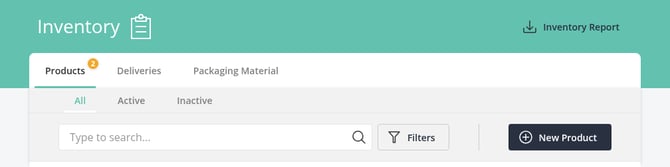
By default, it will select the "CSV Import" option, but if you want to create the product using our Create form, it can still be done by selecting the "Manually" tab:
Once the file is updated with all the products to import, you just need to drop the CSV file into the dotted rectangle on the page or click it to open the file browser.
Here is a description of the columns/headers supported in the CSV file.
|
Header/Field name |
Example |
Description/Possible values |
|
SKU |
sku-a |
SKU identifier as in the e-commerce shop. (Mandatory field) |
|
name |
prod-a |
Name of the product. (Mandatory field) |
|
netValue |
1.01 |
Cost of the product from the supplier. (Mandatory field) |
|
organic |
FALSE |
If it's an organic product or not (special storage required), accepts TRUE/FALSE |
|
lotsEnabled |
FALSE |
Indicated if Lots should be tracked when inbounding and shipping this product, accepts TRUE/FALSE. |
|
fragile |
TRUE |
If it's a fragile product, additional packaging required accepts TRUE/FALSE. |
|
description |
example description of product a |
Description of the product. |
|
barcode |
ABC-abc-1234 |
A single barcode, which becomes the product’s primary barcode. It accepts digits and characters, up to 48 of them, depending on the barcode type selected. To set more than one barcode, use barcodes instead. |
|
barcodeType |
code_128 |
Type of the barcode, it accepts "ean_13", "code_128", "gs1_128", "qr_code". It applies to every barcode in the row, and defaults to "code_128" when left empty. |
|
barcodes |
ABC-abc-1234|ABC-abc-5678 |
One or more barcodes for the product, separated by a vertical bar ( | ). The first one listed becomes the primary barcode. Up to 25 per product, each up to 48 characters. |
|
reorderPoint |
10 |
The stock level below which the product will be sent with the daily notification email (if activated). |
|
customsTariffNumber |
111111 |
Tariff Number accepts only digits with lengths of 6, 8, or 10. |
|
originCountryCode |
DE |
Two letter country code of the origin of the product. |
|
weight |
0.25 |
Weight of the product as sent to the warehouse. |
Note: Only the 3 first columns are mandatory, while all others are optional. However, in the current version, if a column is included in the CSV file, the system will expect it to have valid data and will be allowed to upload if it's blank (this will be updated in a future version).
Using more than one barcode
A product can carry several barcodes. This is useful when you change a barcode in production and need the old and the new one to work at the same time, across your whole catalogue.
List them all in a single barcodes cell, separated by a vertical bar ( | ):
|
SKU |
name |
netValue |
barcode |
barcodeType |
barcodes |
|
sku-a |
prod-a |
1.01 |
|
code_128 |
ABC-abc-1234|ABC-abc-5678 |
Before you upload: an empty barcodes cell is an instruction, not a blank. It tells us the product should have no barcodes at all. If you are uploading a file to change something unrelated, such as names or prices, remove the barcodes column from the file rather than leaving its cells empty.
What happens to a product’s existing barcodes
The barcodes column is authoritative. After the upload, the product has exactly the barcodes your file lists and nothing else, so anything it had before that is not in your file is removed.
The older barcode column behaves differently, so that re-uploading a file you built before this feature existed cannot quietly delete barcodes you have added since.
|
What your file contains |
Result |
|
A barcodes column, with values |
The product ends up with exactly the barcodes you listed. Any others are removed. |
|
A barcodes column left empty, barcode filled in |
The product ends up with just that one barcode. Any others are removed. |
|
A barcodes column left empty, barcode also empty |
All of the product’s barcodes are removed. |
|
No barcodes column at all, barcode filled in |
That value becomes the primary barcode. The product’s other barcodes are kept. |
|
No barcodes column at all, no barcode either |
The product’s barcodes are left exactly as they are. |
To deliberately remove every barcode from a product, include the barcodes column and leave both it and barcode empty for that row.
Things worth knowing
- The first barcode you list becomes the primary barcode. This is the one shown as the product’s main barcode in the dashboard. The order of the rest does not matter.
- barcodeType applies to every barcode in that row, not to individual values. Leave it empty and all of them are treated as code_128.
- Fill in either barcode or barcodes, not both. If you fill both and they do not match, that row is rejected. The two columns are two ways of saying the same thing, and barcodes is the one that supports more than one value.
- Each barcode can be up to 48 characters, and a product can have up to 25.
Why a row with barcodes might fail
On top of the usual validation, a row is rejected if:
- barcode and barcodes are both filled in and disagree with each other.
- The same barcode is listed twice in one row.
- More than 25 barcodes are listed in one row.
- A barcode is longer than 48 characters.
- barcodeType is ean_13 but a value is not a valid EAN-13 number. EAN-13 barcodes are checked digit by digit, so a typo is caught here.
- A packaging unit barcode in the same row is the same as one of the product’s barcodes.
As with any other error, the rest of the file still imports, and you can use "Show errors only" to find the rows that need fixing.
What are the mandatory fields in the CSV for creating a product?
The mandatory fields are "SKU", "name" and "net value", these need to be present in the file and filled in so that the file is accepted. All other fields are optional and the product will be created with those fields either empty or with the default value (for example, FALSE).
When uploading a CSV file with all the correct details of the product our system will indicate that all products passed the validation and are ready to upload.
Once you click on the "Create Products" button the new SKUs will be added to the Inventory list.
In case an existing product as the same SKU, then the details will be overwritten with the information provided in the CSV, since it isn't possible to have 2 products with the same SKU field.
If your file has a barcodes column, that includes replacing the product’s barcodes with exactly the ones you list.
If some of the products don't pass our validations, it will be shown in the system which products have errors, and the numbering will be the order by which the products are in the CSV file.
You can also decide to import only the products that pass the validation, by clicking on "Create Products", or instead click on the "Cancel" button and try again with the file corrected.
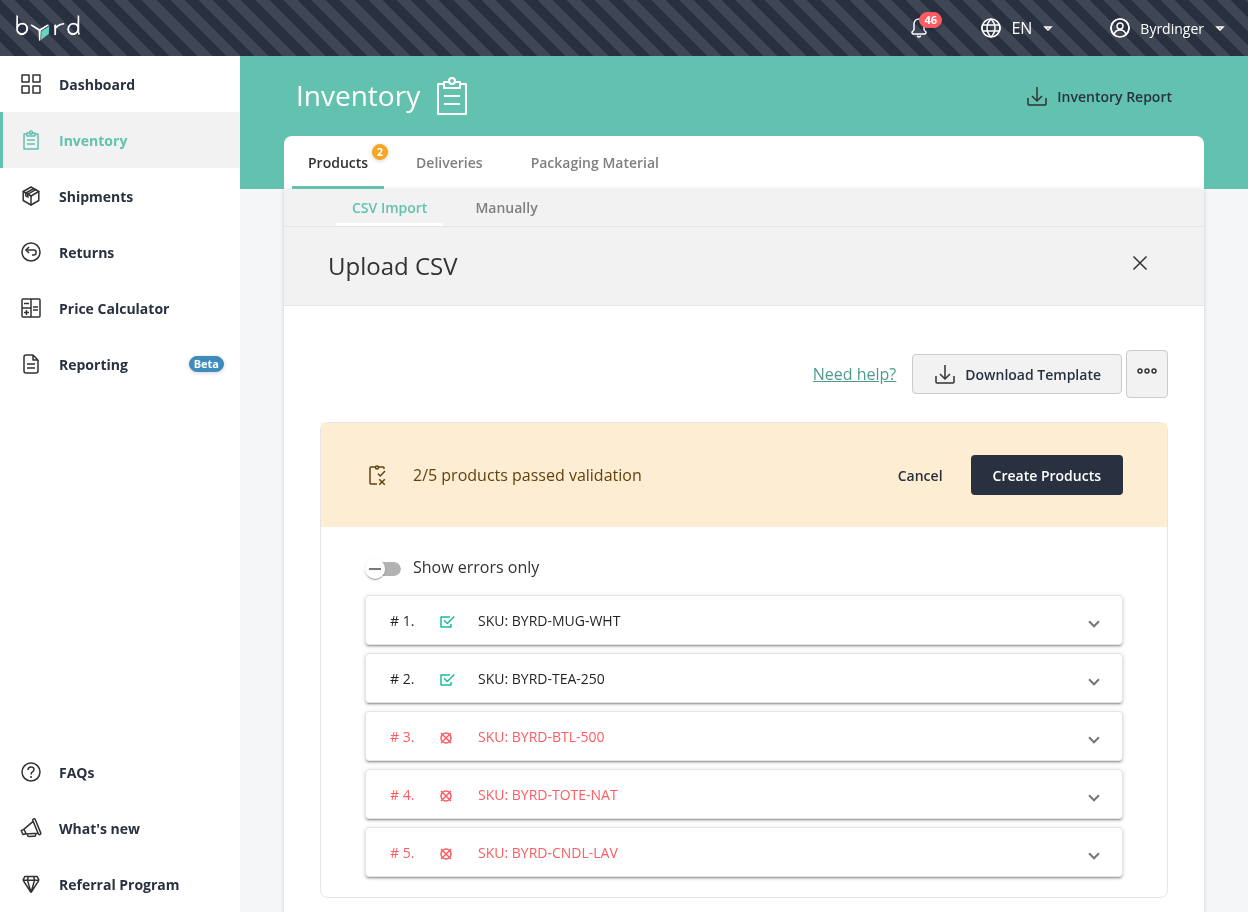
You can select the option to "Show errors only" to hide all the valid SKUs and just list the ones that have errors to more easily find what needs to the changed.
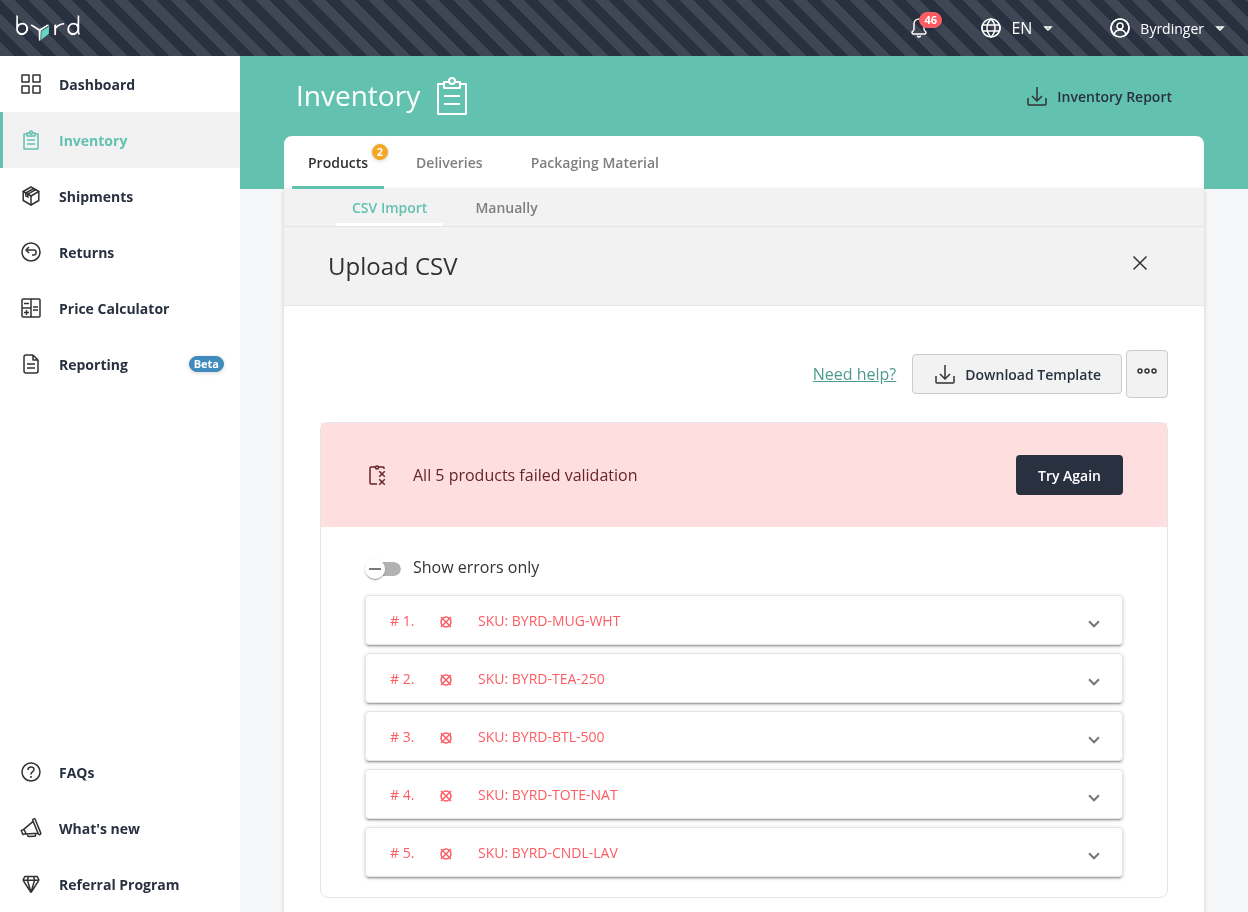
If none of the products in the CSV file passes our validations, you will only be able to click on the "Try Again" button and upload a new file with the errors fixed.
"Try Again" button will allow uploading a new file:
There will be an error message in case the CSV file is missing any of the 3 mandatory fields:
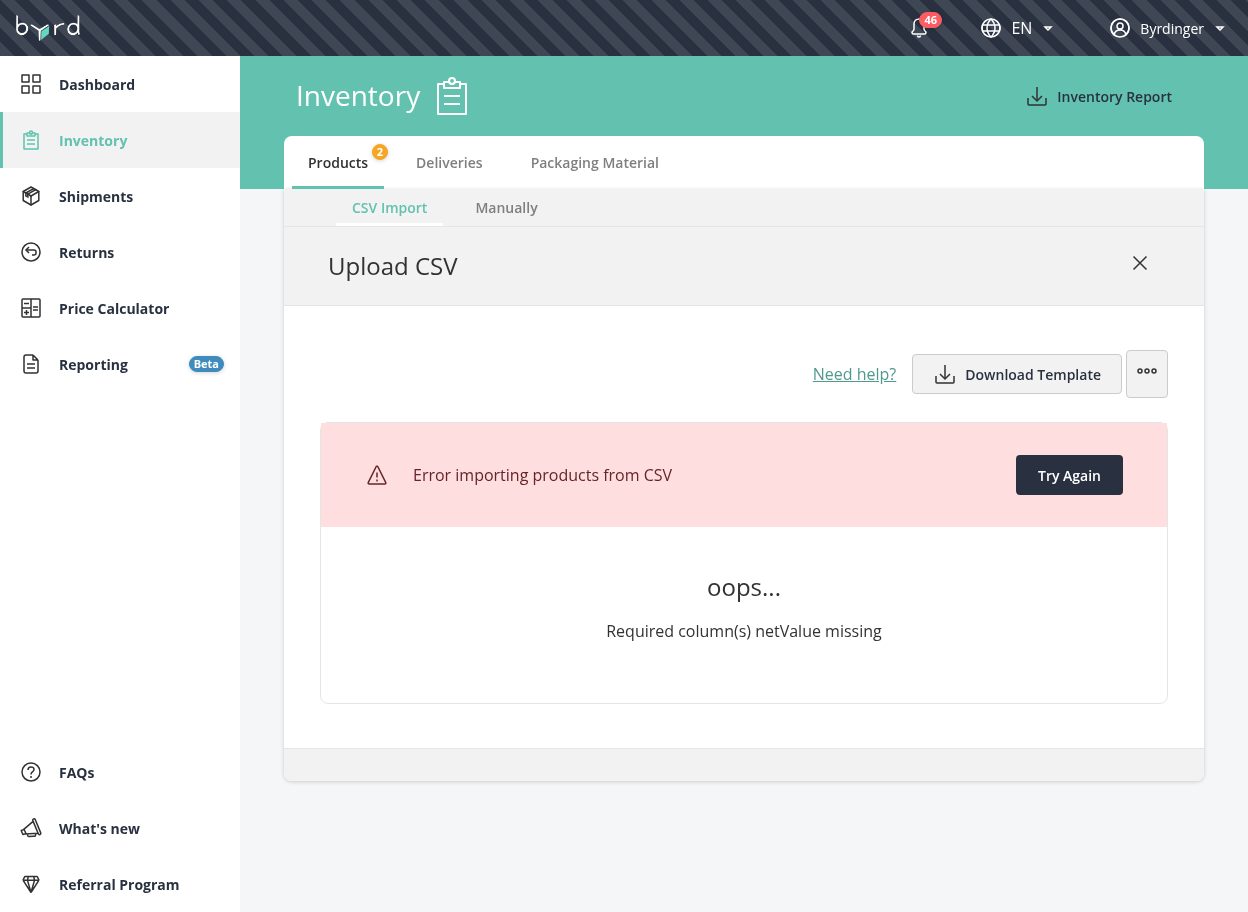
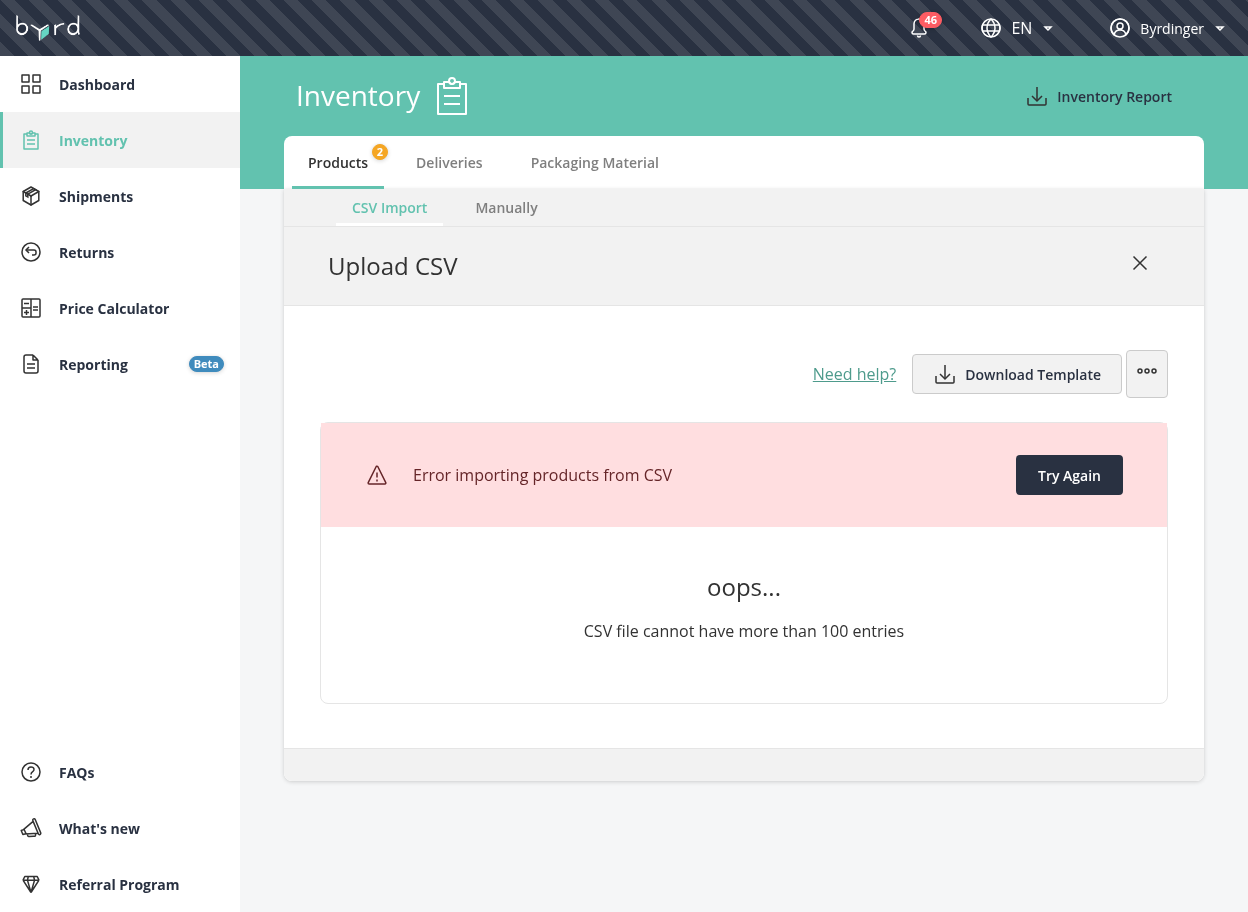
At the moment the file uploader only supports CSV files with a maximum of 100 products, if you need to upload more than 100 Products, It will be necessary to split them into separate files. Otherwise, the dashboard will show the following error message:
In case of any further questions, please get in touch with our Account Management Team, and they can help you.