.png?width=85&height=40&name=byrd_logo_classic_transparent%20(3).png)
Step 1: Change inventory placement settings
To ensure that your shipment is sent to one Amazon fulfillment center instead of multiple locations, you need to activate the Inventory Placement Service.
- Log in to Amazon Seller Central.
- Navigate to: Settings (gear icon in the top right) → Fulfillment by Amazon
- Scroll to Inbound Settings / Versandnetzwerk-Einstellungen.
- Click Edit.
- Select the option: Inventory Placement Service (Restricted warehouse distribution / Eingeschränkte Lagerverteilung).
- Click Save.
Step 2: Create a new pre-FBA shipment
Next, create the shipment in Seller Central.
- Go to: Inventory → Send to Amazon → Create new shipment
- Select the products you want to send to Amazon.
- Enter the number of units for each product.
- Provide packaging information: Individual units, or packed in cartons.
- Continue to Shipping Preparation.
- Print FNSKU labels if required.
- Complete the packaging step and click Add shipping boxes.
Step 3: Select shipping options
- In the step Shipping Settings, locate the carrier selection.
- Choose: Non-Amazon Partnered Carrier or Other Carrier.
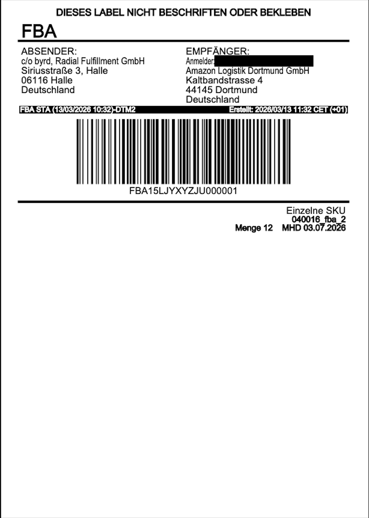
- Amazon will still provide the destination fulfillment center address (for example Graben or Winsen) and the label (see image below)
You can now organize the shipment yourself by: Hiring a freight forwarder via byrd, organizing a freight forwarder yourself (e.g. DB Schenker, Dachser, Kühne + Nagel) or delivering the shipment with your own transport.